Guide
Work orders and bills of materials in ERPNext, step by step
A bill of materials says what goes into a product. A work order tells the shop floor to make a quantity of it. This walkthrough follows one product, a control panel enclosure, from BOM to finished goods. The screens below come from a demo ERPNext site with sample data.
Updated October 2026
1. Build the bill of materials
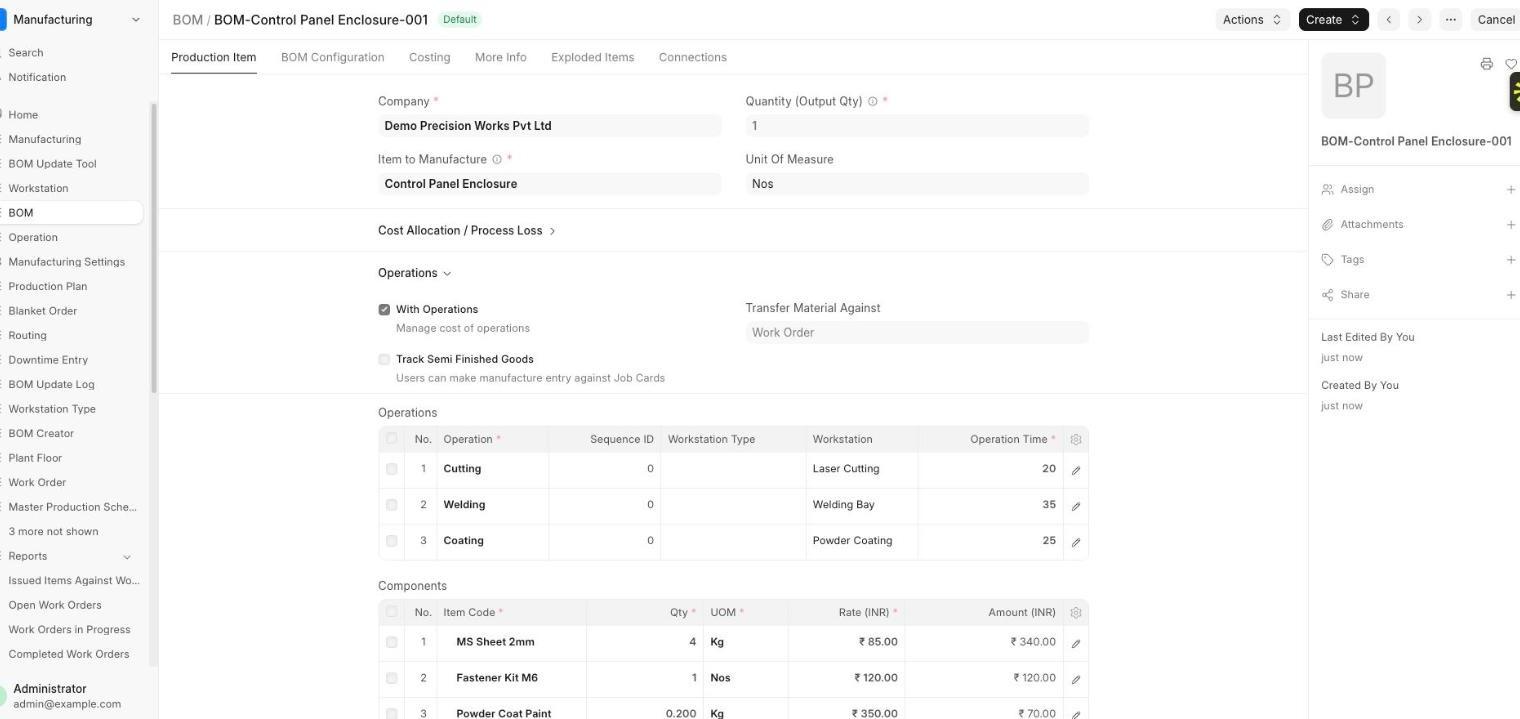
Pick the item to manufacture and the output quantity, then list each component with its quantity. The enclosure uses 4 kg of MS sheet, one fastener kit and 0.2 kg of powder-coat paint. At the rates entered, the material cost works out to ₹530 per unit.
If you track time, tick With Operations and add each operation and its workstation, such as cutting, welding and coating. Keep one default BOM per item and submit it, because a work order can only use a submitted BOM.
2. Create the work order
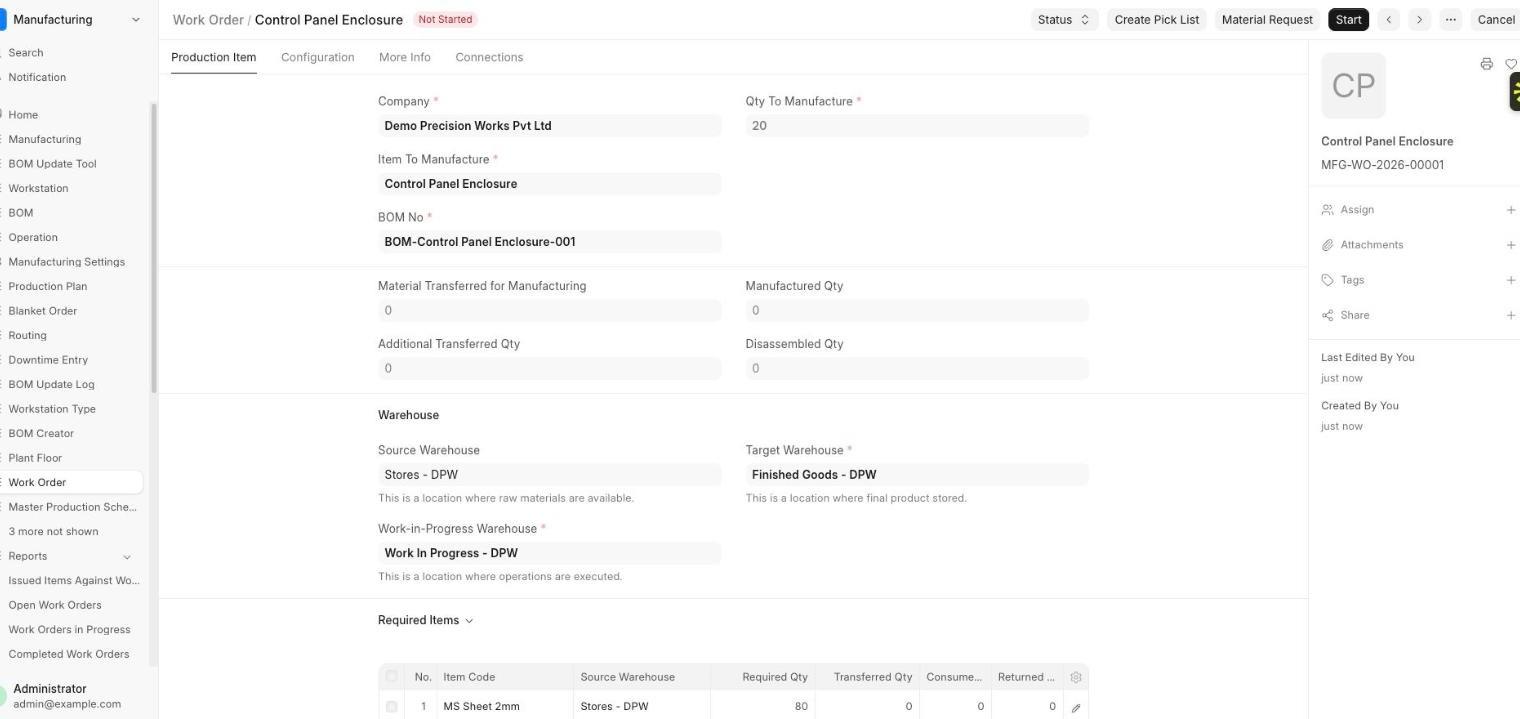
Choose the item, the BOM and the quantity. Set the source warehouse where raw materials sit, the work-in-progress warehouse, and the target warehouse for finished goods.
For 20 enclosures, the system calculates the required items from the BOM: 80 kg of sheet, 20 fastener kits and 4 kg of paint. The status starts at Not Started.
3. Transfer materials to work in progress
Start the work order to transfer raw materials from Stores to the work-in-progress warehouse. ERPNext records this as a stock entry of type Material Transfer for Manufacture, so the stock moves out of Stores and into WIP.
4. Record the manufacture
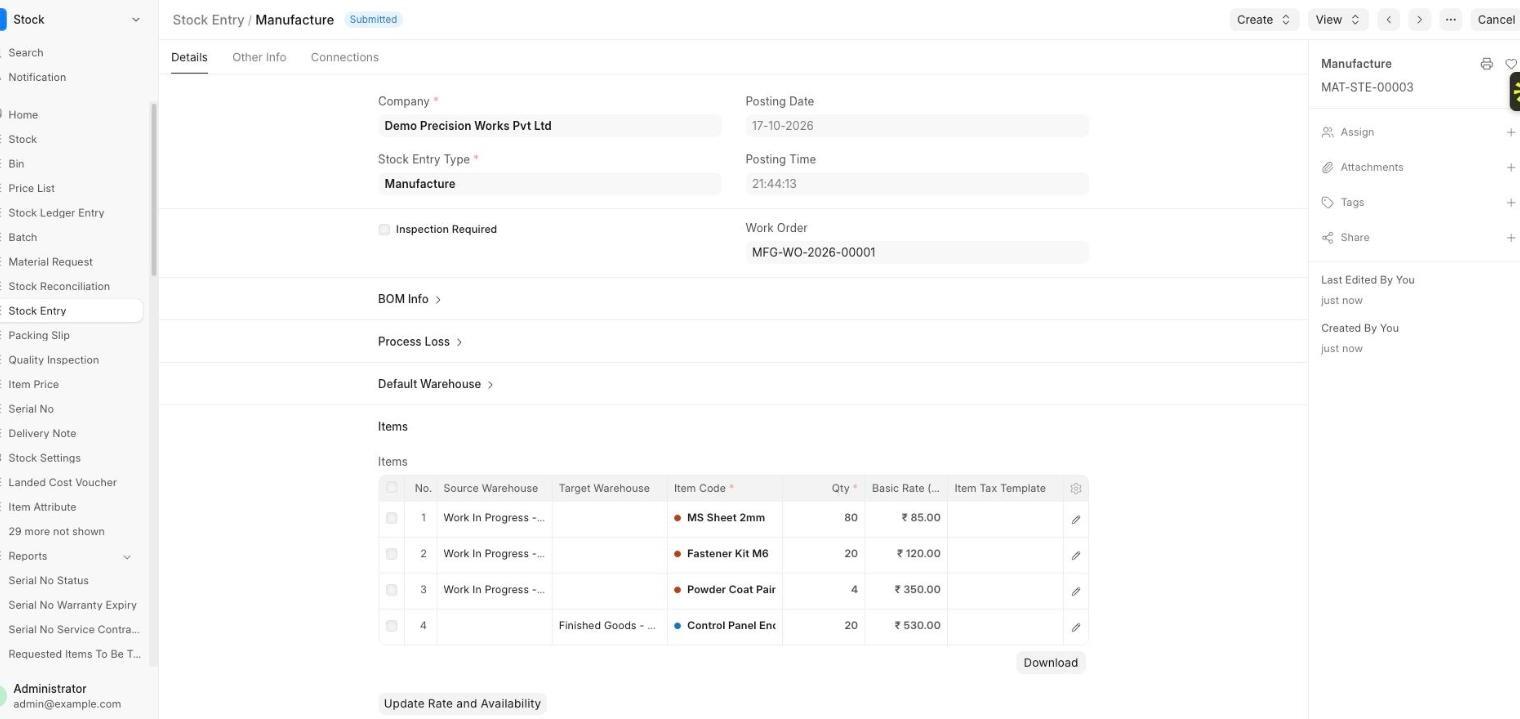
When production finishes, create the Manufacture stock entry. It consumes the raw materials from work in progress and adds 20 finished enclosures to the Finished Goods warehouse, valued at ₹530 each from the BOM costs.
5. Check the result
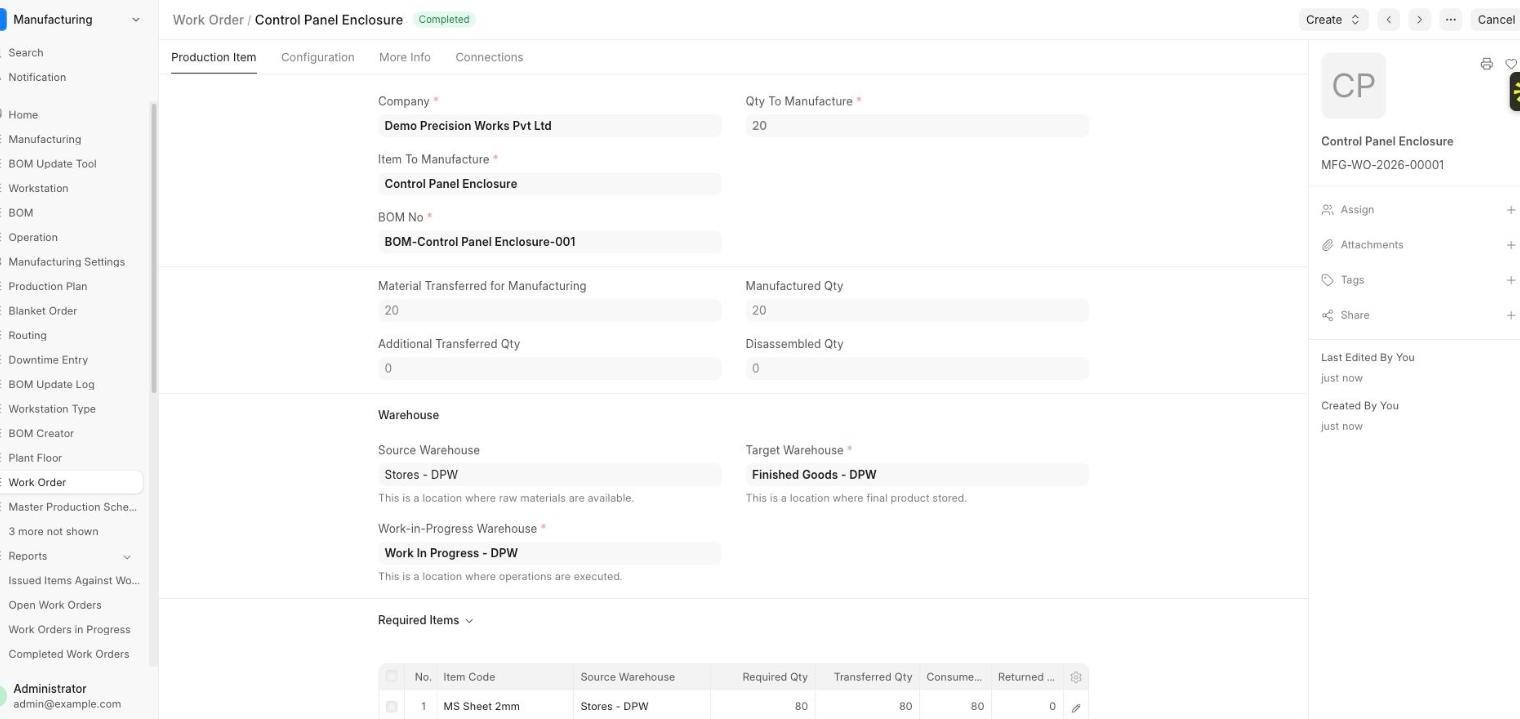
The work order shows Completed, with 20 units transferred and 20 manufactured. Stock, cost and the work order all agree, with no spreadsheet in between.
What to check when it does not work
- The BOM is not submitted, so the work order cannot pick it.
- Raw material is missing from the source warehouse, so the transfer fails.
- A component has no rate, so costs show as zero.
- The wrong warehouse is set as work in progress, so stock appears to vanish.
Where operations and job cards fit
If the BOM has operations, the work order lists them and you can create job cards to track time on each workstation. Teams that only need material control can start without operations and add them later.
Frequently asked questions
What is a work order in ERPNext?
A work order is an instruction to manufacture a quantity of an item using a BOM. It tracks required materials, the materials transferred to production and the quantity manufactured.
Do I need operations to use work orders?
No. You can run work orders with materials only and add operations and job cards later if you want to track time per workstation.
How does ERPNext cost a manufactured item?
It adds up the component costs from the BOM, and operation costs if you use operations, and values the finished goods at that cost.
Not sure which fits your business?
We map how you work today before recommending anything.